
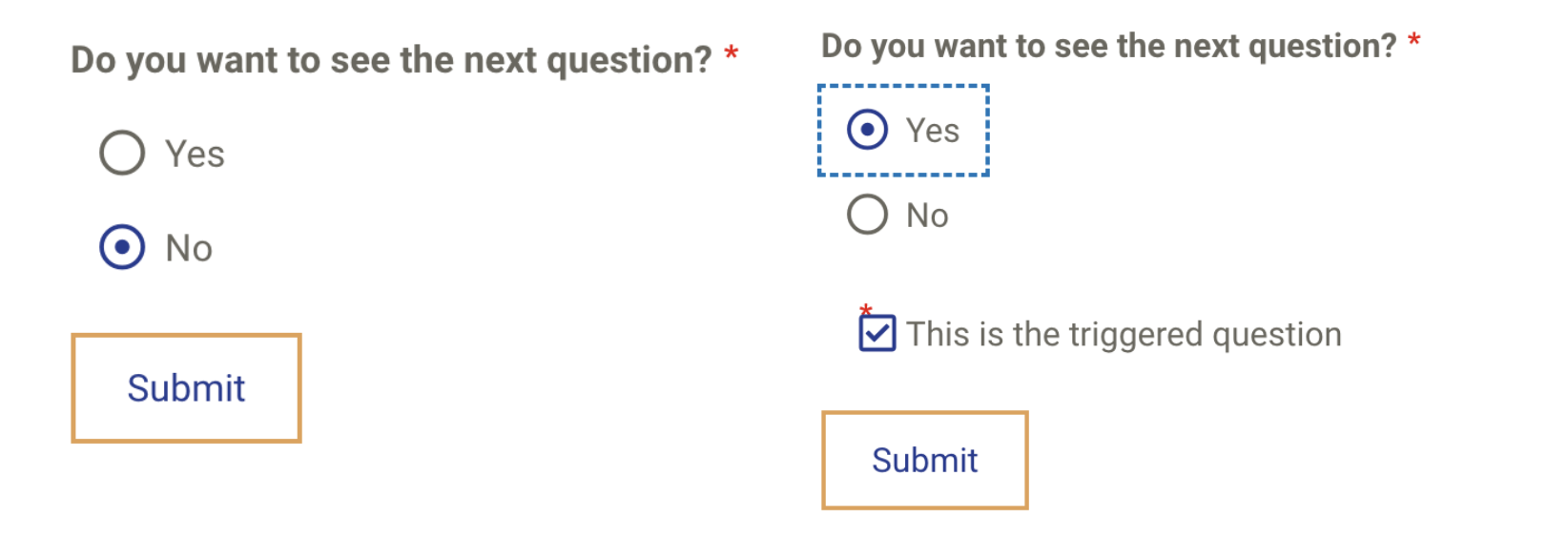
Conditional formatting allows for webform elements to appear depending on specific conditions (e.g., "If yes..." follow-ups to yes/no questions).
Create the trigger element that will prompt other elements — typically checkbox, but can also be radios, or a text input based field
Image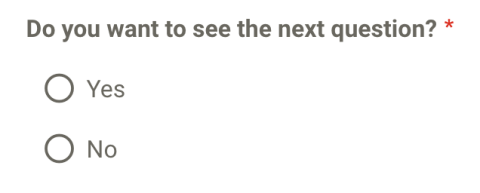
- Create the triggered element(s) — create the question you want to appear the same way you would add any other element but, before saving, follow step three and four
- To set the trigger, click Condition' for the triggered element(s) & set the conditional logic
- Set state to Visible if All of the following is met
Set Element for the trigger - this should be the question you set up in step one
Image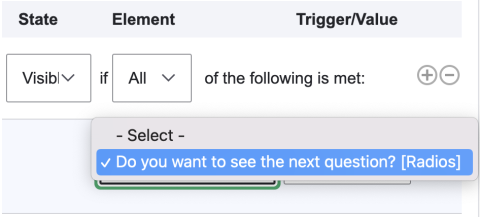
- Set trigger/value
- If trigger element is a Checkbox, select Checked/unchecked
- if trigger element is Radios, select Value is and the trigger value
if trigger element is a textfield, select filled/empty'
We want to hear from you!
Our team at Upanup is always striving to make this guide better and more accessible for our clients. We’d love to hear from you, so we can continue to improve this guide.