
You have the option to turn a regular page into a landing page, or a page with the primary purpose of aiding users in navigating to the pages below it. A landing page aggregates child pages under the parent page and allows admins to provide a description or overview of the common thread between the pages.
When the landing page box is checked, the page will automatically generate a series of Quicklinks based on the names of the child pages. These Quicklinks can be edited to display a new title and a corresponding icon. To remove the Quicklinks the parent page must have the landing page box unchecked.
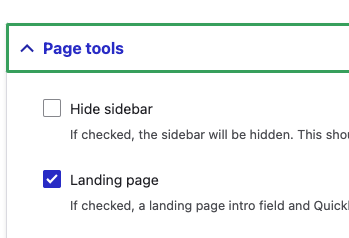
To turn a page into a landing page, you'll want to edit the desired page. Once in the edit screen, you'll want to look under the setting accordion call Page tools. This setting is likely under your Advanced Page Settings, which is located in the sidebar, right at the top of the page, or in the settings at the bottom of the screen.
Once you return to the front view of the page, Quicklinks will have populated from the child pages. These Quicklinks won't have icons associated with them right away. You'll have to set the icons for each page.
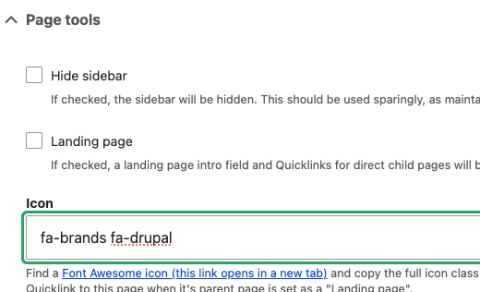
To update the icon, select Edit on the child page. From the edit screen, head to the Page tools menu again. There will be a text field called Icon. There you can insert the icon class for your desired icon using Font Awesome.
Once all the icons have been added for all child pages, they will show up along with the page titles in the Quicklinks section. To remove the Quicklinks simply uncheck the 'Landing page' option in the parent page.