
Content rows are the building blocks for pages and other content types. They allow you to add and arrange content in various formats on a page/node. If you are new to content types and rows, check out our article on Understanding Drupal Content Types for more!
If a content type is a specific type of tupperware, content rows are the food that fills the bulk of the container - you can rearrange and add as much or as little food until you have the desired amount. However, some content rows require you to specially prepare your food for the container ahead of time, such as adding images in the media library before adding it to your content rows.
Content row examples
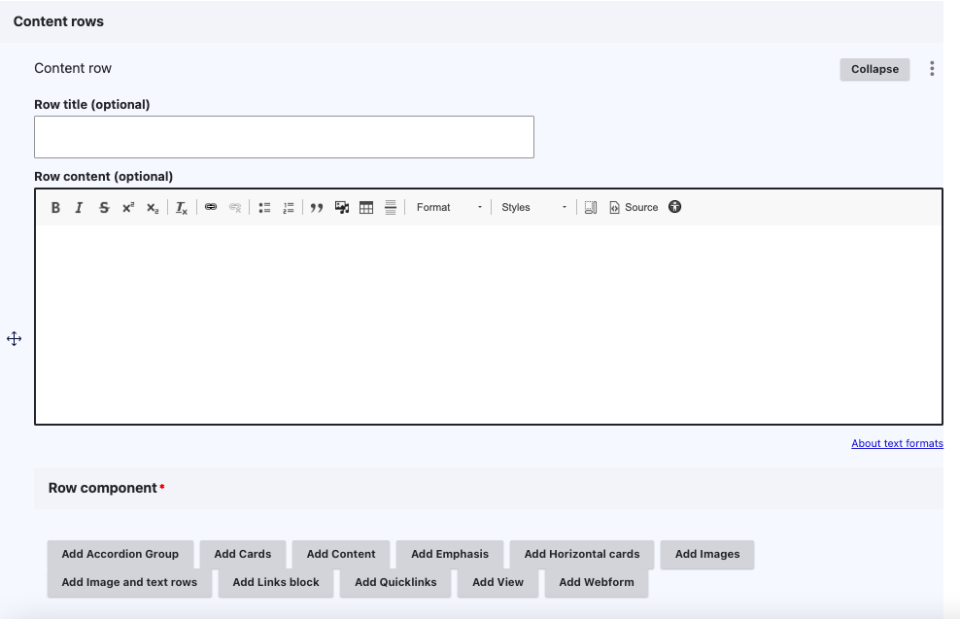
By default, a content row will always have two fields. A row title which will be styled as a H2 header for the row. The other is a WYSIWYG field titled row content, this is where standard content is added.
Row components
A row component is a unique layout/function element that helps structure page content. When selected, the component is always added below the row title and content. Examples of common components:
- Accordion group - this component can be used for categorized list items (i.e. FAQs) or to organize non-crucial information on long pages.
- Cards - this component can be used to highlight call-to-action (CTA) information and links. A title, short description, an image and a link are included within this content row.
- Quicklinks - this component can also be used to highlight CTA links, however, it only includes a title and a FontAwesome icon. You can add multiple quicklinks in one content row if needed.
For more information and specific instructions for common row components, check out our row components guide.
How to add a content row
To add a content row to a page or node, log in to Drupal and either add a new page or content type, or navigate to the existing page or node you want to edit. Once in the editing interface, follow these steps:
- Scroll down to the "Content row(s)" section and click 'add content row'
- Enter a "Row title" if applicable. This will show as a heading 2 for the section. It is optional.
- Enter "Row content" or description if necessary.
- Under the "Row component" section, select the type you would like to use for your content.
- Once you've selected your row component, fill out the fields for that component.
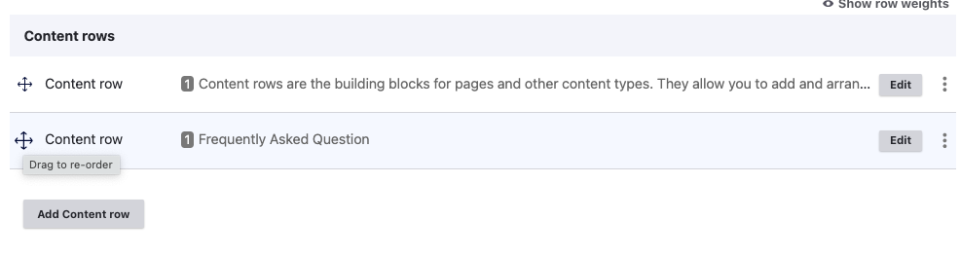
Continue to add more content rows to your page/node as needed by clicking the "Add Content row" button. Once you've added multiple content rows, you can use the crosshairs to drag and drop rows to rearrange the order as needed. Make sure to save your page/node once you're finished editing.
We want to hear from you!
Our team at Upanup is always striving to make this guide better and more accessible for our clients. We’d love to hear from you, so we can continue to improve this guide.