This page provides an overview of how to log in to Drupal and navigate through the admin menu.
On this page:
Logging in
You can log in to Drupal from any device connected to the internet. We advise that you use a recent version of mainstream browsers, such as Chrome, Firefox or Microsoft Edge to log in.
To reach the login page, you'll need your site's log in link. Typically, these links look something like this: https://www.example.ca/user/login?access=example123.
Once on the page, you need to enter your username and password. If you have misplaced or forgotten your username or password, please contact Upanup support.
Alternative Log In Processes
Your site may have an alternative log in process. This is typically because your site has a Single-Sign On process, which links your website account to another account you hold in your organization. If you have a log in link like the one above, it should redirect you to the log in page for your site. This page may just look different from the standard log in page.
The Drupal Admin Bar
Once you're logged in, you'll be able to see the Drupal admin menu bar. This menu bar is used for navigating around the administrative areas of your website, including adding and editing content.
Depending on your user role, there may be a number of options available in your menu bar. We'll go through some areas in this menu bar that you're likely to be using.
The Content Menu
The first item on in the admin menu is the Content menu. Here you can review existing content, add new content, review stale content, and visit the media library.
By clicking on Content, you'll be taken to a page that lists all the content items on your site. The list will show you:
- The content's title
- The content type
- Who the original author is
- Whether the content is published or unpublished
- When the content was last updated

You'll also have the Operations column on the right. The main operation is Edit, and clicking it allows you to edit the page. However, if you click the arrow to the right of edit, you'll be shown other operations, including:
- Schedule Transitions
- Delete
- Clone
This list of content is sorted by most recently update, however you can change what it sorts by, by clicking the column header for Title, Content type or Status.
You can filter this list by published status or content type. You may have additional filter options, depending on how your site is set up. Alternatively, you can search this list, if you know the Title, or have an idea of the Title, of the content you are looking for.
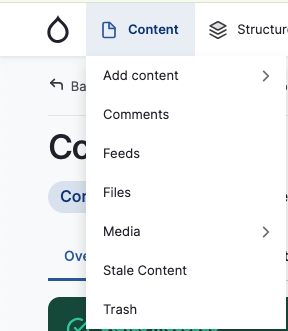
If you hover over Content in the menu bar instead of clicking it, you'll get a fly out menu with the following content options in it.
The People Menu
The final menu in the admin menu that you'll likely need to use is the People menu. Under the People menu, if you have the right level of access, you can add or manage site users.
The Help Menu
At the very end of the admin menu, you'll find the Help menu. Hovering over Help will give you links to any website guides you have access to. You should see a link to this website guide, as well as a link to a custom guide or a technical guide, if your organization has one. There may also be links to style guides or other custom guides to help you create content on your website.
Workflow States
Workflow states allow users to easily identify the status of a node. Below are the four workflow states:
- Draft - Used for work that still in progress. Drafts exist exclusively on the back end of your website, giving users the opportunity to continue updating the node without making it public.
- Needs Review - This status indicates work is complete and ready for review by a Content or Website Admin. 'Needs Review' is the highest permission given to the Content Editor role and is also not visible to the public.
- Published - When content is ready to go live, Content and Website Admins can publish it. This will be visible to the public.
- Unpublished - If a node at any point becomes outdated or unnecessary, Content and Website Admins may choose to unpublish said node. Unpublished nodes are no longer public, and will lead to a 404 error if access is attempted by users with a saved link.
Reviewing Nodes
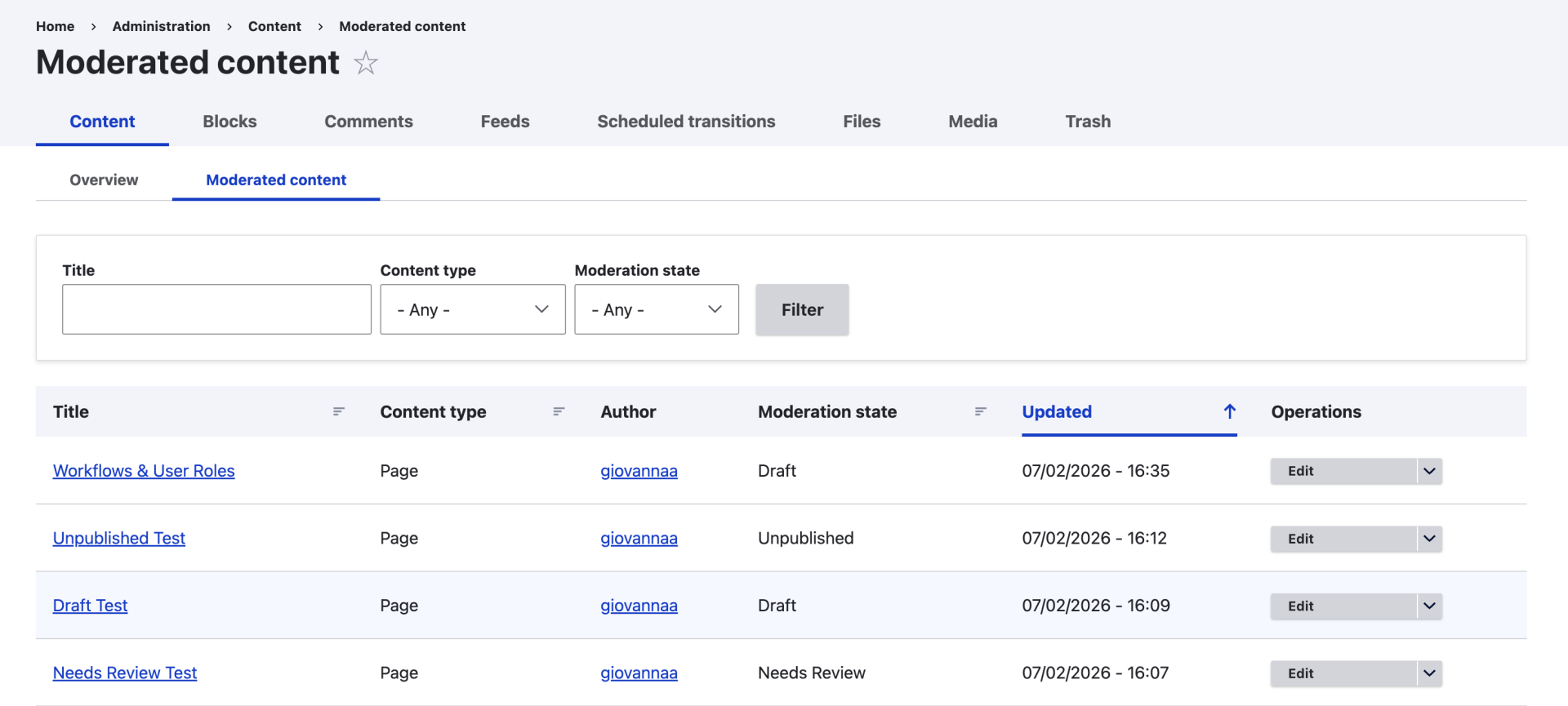
To moderate content, navigate to Content > Moderated Content. This view will only show content tagged as 'Draft', 'Needs Review', or 'Unpublished'. To change the node's workflow status you can find the correct node, select the drop down arrow under the 'Operations' column, and choose to schedule a transition. Alternatively you can select 'Edit' and change the workflow status within the node itself.
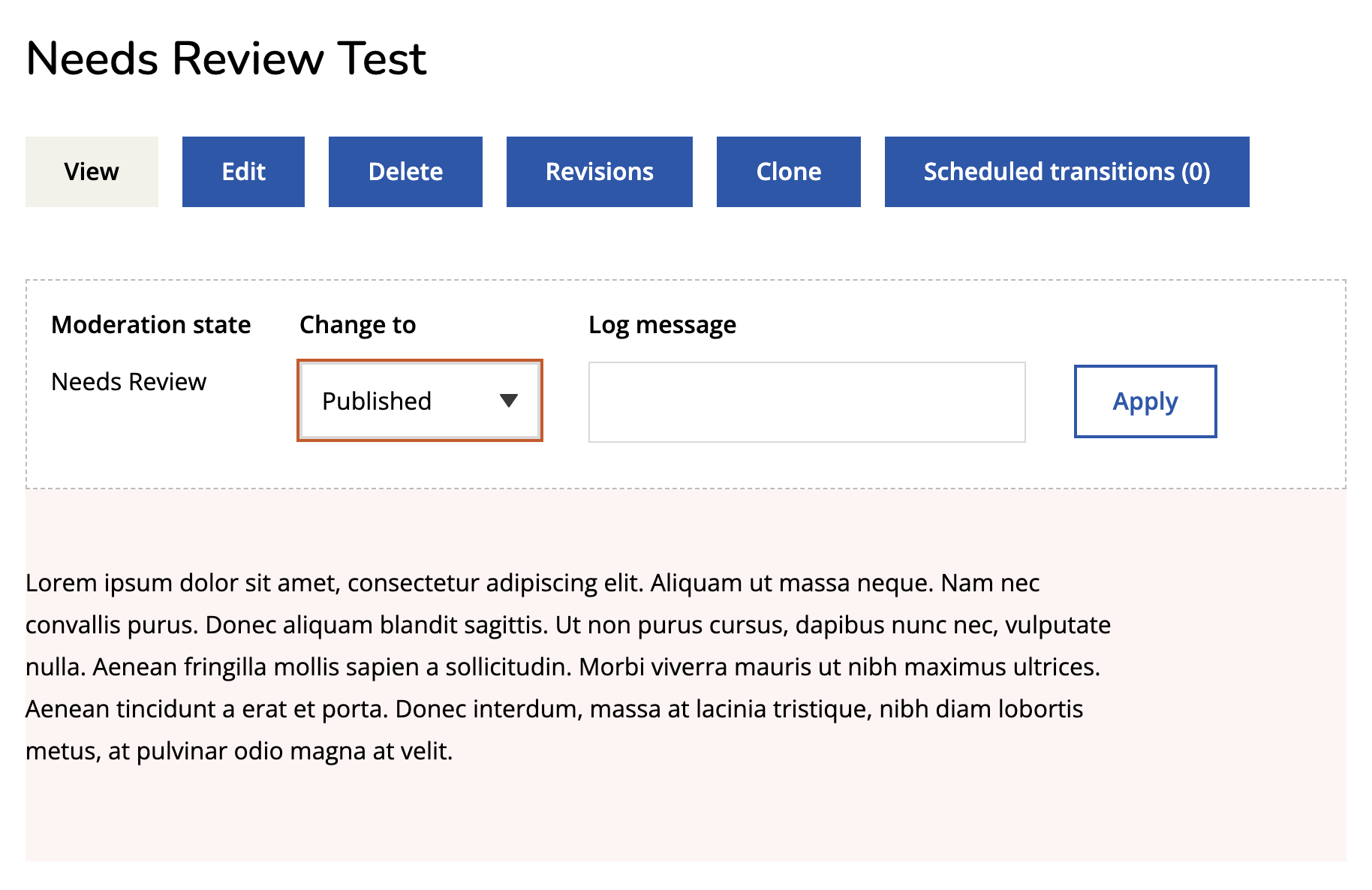
Pages set to any state other than 'Published' will show with a pink background to indicate the page is not live. Workflow states can also be updated directly from this preview screen.