
Anchor links are links that will take you to a specific place on a page. For example, for a long webpage, you might have a table of contents that uses anchor links to help users 'jump' to a certain section.
On this page:
How to Create an Anchor Link
Creating an anchor link is a simple process that can be done from any WYSIWYG field on your site:
- Place your cursor next to the text that you want to be able to jump to
Click the anchor link button (the flag icon, next to the link button in the WYSIWYG toolbar)
Image
Enter an ID for your anchor link. The ID should be descriptive, but concise. The ID cannot contain spaces, but hyphens and underscores can help split up words. IDs are also case-sensitive.
Image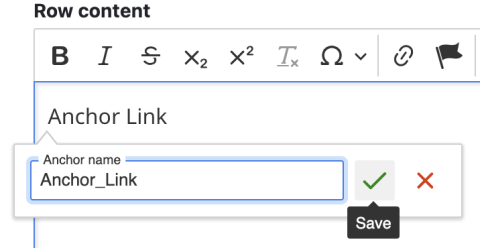
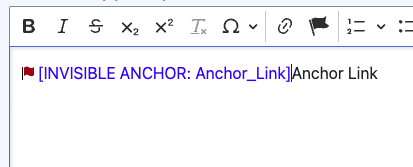
Click the green checkmark to save. Now you have an anchor that you can link to!
How to Link to an Anchor Link
Once you've created an anchor link, you can use it to link a user to that content. To link to an anchor:
- Go to the text you want to link to the anchor
- Highlight your text
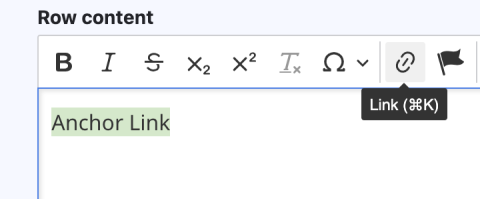
- Select the Link button on the WYSIWYG toolbar.
- Image
- Type your anchor link ID into the URL box. Preface the ID with a # symbol.
- Image
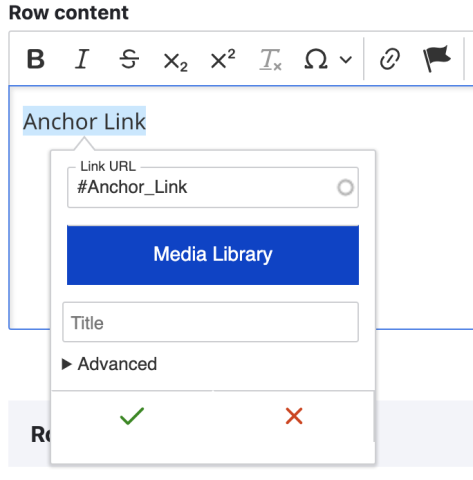
- Click the green checkmark to save you link. Now the link text will take users directly to you anchor link.
The above steps work for anchors on the same page as the link. If you want to link to an anchor on a different page, the steps are a little different:
- Follow steps 1 to 3 to add a hyperlink to your text
Instead of just adding the ID to the URL box, you'll need to include a link to the page the anchor is on first.
Image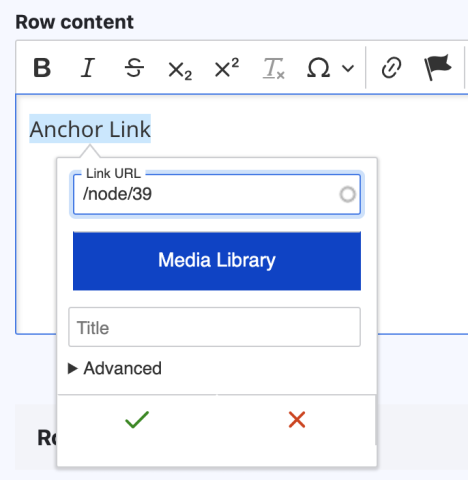
Once you have the page link in the URL box, you can add a # immediately following it, along with the ID.
Image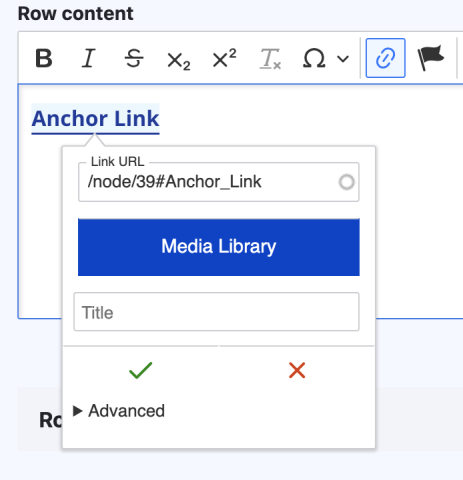
- Click the green checkmark to save your link. Now the link text will take users directly to your anchor link.