
When you first open a page or piece of content on the back end of your website, you'll see a horizontal menu block with different editing options. Each of these buttons - View, Edit, Delete, Revisions, Clone and Scheduled Transitions has a specific purpose. Keep reading to see what each function can do!
On this page:
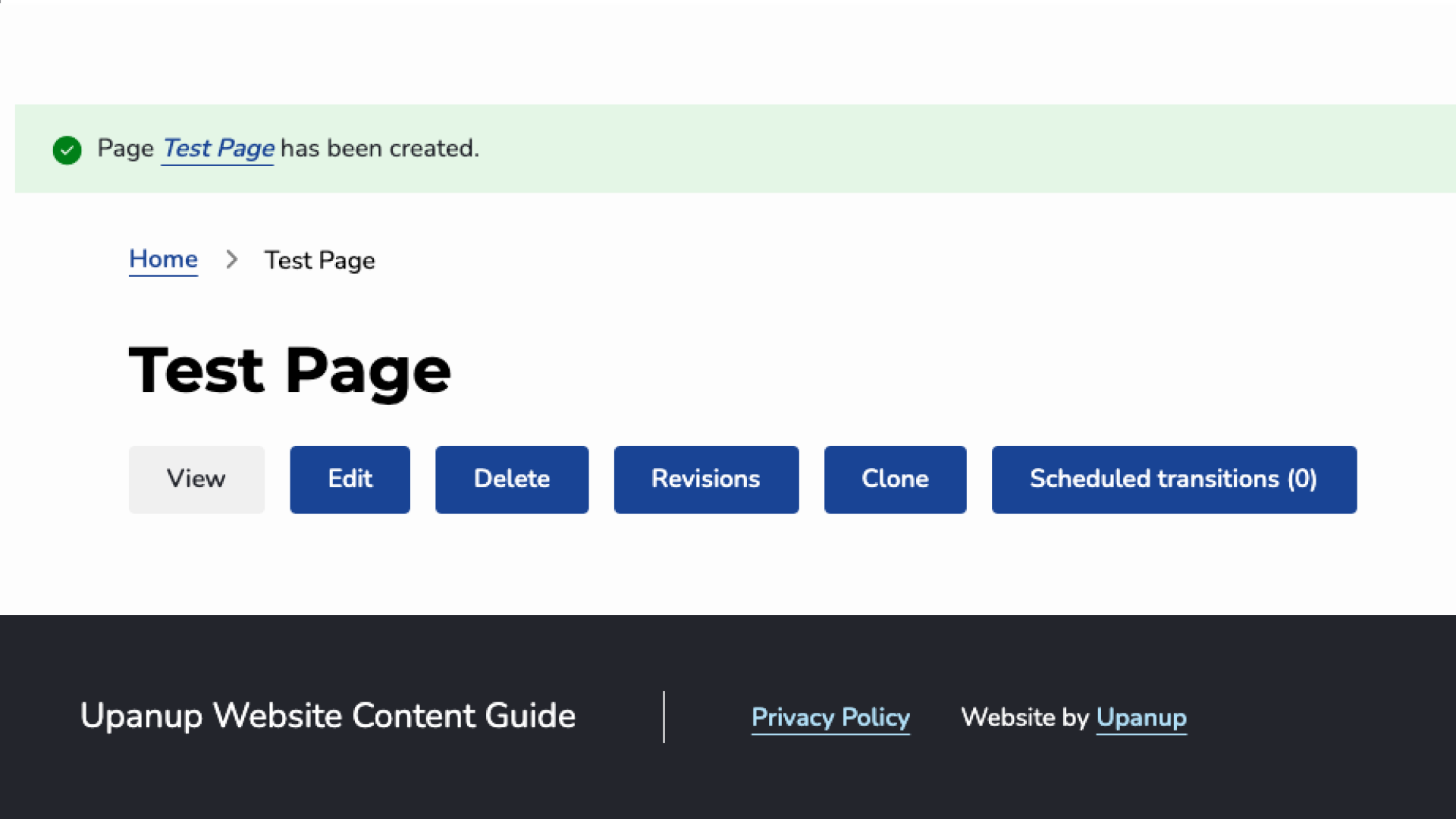
Editing Options Menu
View
Click view to return to your most recently saved version, make quick edits, and view your content as a user would. View will be the default mode when you navigate to a piece of content.
Edit
This allows you to add, delete or change content such as your title, content rows and edit advanced settings. Always remember to save as published after making edits to keep your progress.
Delete
This will delete the node you have created. This action cannot be undone (unless you have the “Trash” module).
Revisions
Revisions allow you to track differences between multiple versions of your content, and revert to older versions. You can view the time each version has been last reverted and easily switch between versions.
Clone
Drupal has a built-in “Quicknode Clone” feature to making multiple pieces of similar content easy. For example, you might have an annually recurring event that could be cloned for easy future use. You may not have access to this feature based on your permissions. Here's how to use the Clone feature in Drupal 10:
- Navigate to the page/node you want to clone.
- In the menu under the node's title, click the clone button as shown below
- Make any edits to the clone node — keep in mind everything will be the same by default except the title, which will read “Clone of ______”
- Toggle to save as published and click save to finish creating your newly cloned node!
Scheduled Transitions
Scheduled Transitions allow you to schedule a publishing state change for your content at a future date and time.
Learn how to use Scheduled Transitions
Publishing
When you save your work after making edits at the bottom of the page, you will see the publishing state of the latest version. You can then choose to save this new version as a Draft, Published, Archived or Needs Review.
The Draft state is good for your works-in-progress. Any changes saved in draft are only visible to website users, so you can test out formatting options or draft content to come back to using the draft state.
Needs Review allows you to send content to other users for review before publishing. Depending on your User Role, you may only be able to set content to Needs Review. When you set a page to Needs Review, you'll have the option to 'assign', or email, the appropriate reviewer that there is content that requires their attention.
Published make the content live. You should only publish content once you know it's ready to be public and has be reviewed by all necessary parties. Unpublished does the opposite — it pulls content from the front-end of the site. If your content is outdated or no longer relevant, you'll want to unpublish it.